
Canva is the better starting point for most solopreneurs because of its template range, generous free tier, and mobile speed. Adobe Express pulls ahead if you already pay for Creative Cloud or need sharper AI images and typography. The deciding factor is simple: pick range and price if you’re publishing high volume, pick polish and integration if you live in Adobe’s ecosystem. Either way, start with the free tier that matches your actual constraint.
TL;DR:
- Canva’s free tier offers a larger template library for rapid, high-volume social content creation, making it ideal for solopreneurs with daily publishing needs.
- Adobe Express costs less if you already have a Creative Cloud subscription, and its tighter integration with Adobe Photoshop and Illustrator benefits users within that ecosystem.
- Canva’s AI toolkit provides broader, faster options for social media resizing and background removal, while Firefly offers higher fidelity images for professional client work.
- Canva is easier for beginners to learn quickly, whereas Adobe Express feels more intuitive if you’re already familiar with Adobe’s design tools.
- Both platforms are cloud-based with limited offline capabilities, so users must plan ahead to finish work without internet access.
Canva vs Adobe Express: A Quick Side-By-Side
Canva is the volume play. It’s built for creators who need dozens of on-brand social posts, carousels, and marketing graphics fast, with a free tier that covers most of what a solo operator needs before ever hitting a paywall. Adobe Express is the precision play. It’s leaner, ties directly into Adobe Firefly and Creative Cloud, and rewards anyone who already touches Photoshop or Illustrator during their week.
Here’s how the two stack up on the factors that actually change your day-to-day work.
| Feature | Canva | Adobe Express |
|---|---|---|
| Price | Canva Pro around $14.99/month | Express Premium around $9.99/month, often bundled with Creative Cloud |
| Free tier value | Very generous, large free template pool | Solid, but fewer premium templates unlocked free |
| Template & asset library | Massive, wide-ranging by niche | Smaller, curated, higher production value |
| AI features & quality | Broad AI toolkit, good for speed | Firefly, trained on licensed Adobe Stock content, stronger fidelity |
| Ecosystem integrations | Standalone, wide third-party app connections | Deep Creative Cloud sync, Photoshop/Illustrator handoff |
| Ease of use | Very beginner friendly, drag and drop | Clean but leans on Adobe’s design conventions |
| Brand kit & collaboration | Strong brand kit, team folders, comments | Brand kit available, lighter collaboration tools |
| Mobile & export support | Strong app, wide export formats | Quick Actions for mobile edits, tight PDF and image tools |
| Best for | Social-first creators, high-volume output | Creative Cloud subscribers, typography-focused work |
ZDNet’s comparison found Canva delivers more range and ease for most users, while Adobe Express produces cleaner output with tighter Adobe workflow fit. If you’re publishing five posts a day, Canva’s breadth wins. If you’re producing fewer, higher-stakes pieces and already own Creative Cloud, Adobe Express earns its keep.
- Canva fits solopreneurs who publish often and need speed over polish.
- Adobe Express fits creators who already pay for Adobe apps and want tighter integration.
How Do Canva and Adobe Express Compare on Price?
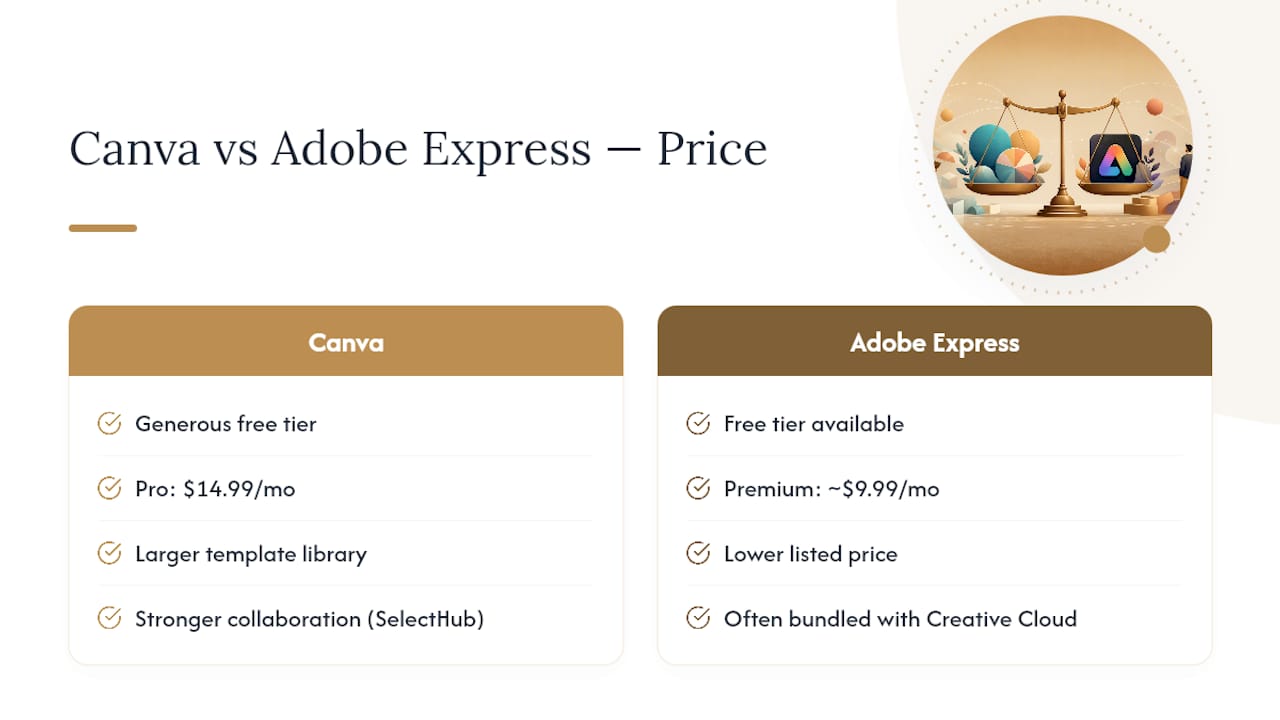
Canva’s free tier is one of the most generous in graphic design software, giving solopreneurs access to thousands of templates, basic brand kit tools, and core editing features without a card on file. Canva Pro runs about $14.99 a month, unlocking premium templates, background remover, and a larger AI toolkit.
Adobe Express takes a different angle. Its Premium tier lists around $9.99 a month, undercutting Canva Pro on paper. The real value shows up if you already subscribe to Creative Cloud. Many Creative Cloud plans include Express Premium at no extra cost, which changes the math entirely for anyone already paying for Photoshop or Illustrator.
Here’s the pricing wrinkle most comparisons skip: SelectHub’s analysis shows Canva Pro scoring higher on collaboration and template breadth, even at the higher price point. You’re not just paying more for Canva, you’re paying for a wider library and stronger team features.
For a solopreneur with no existing Adobe subscription, Canva’s free tier usually covers early-stage needs entirely. If you’re already inside the Adobe ecosystem, Express Premium’s lower price plus the Creative Cloud bundling makes it hard to justify paying twice for design tools. Test both free tiers against a real project (a week of social posts, one client deck) before committing to either paid plan.
Which Tool Has a Bigger Template Library?
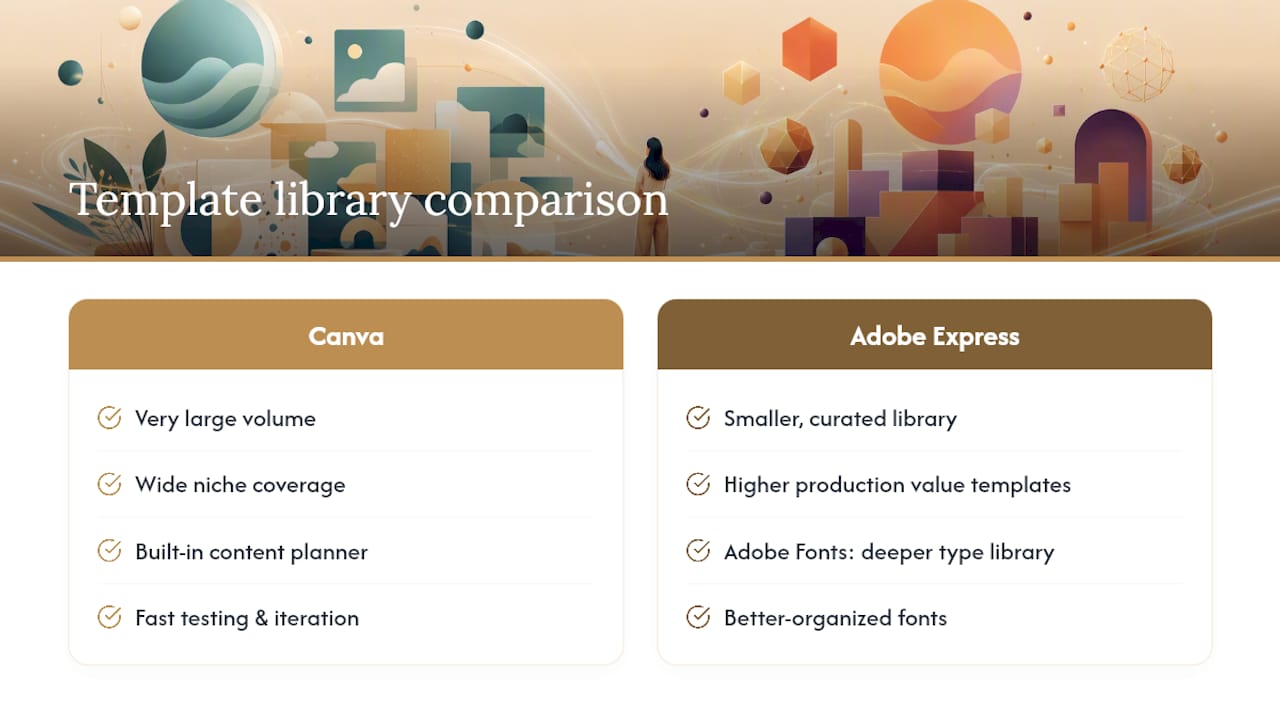
Canva wins decisively on raw template volume. Its library spans niches from real estate flyers to podcast covers, and analyst comparisons consistently flag Canva as the stronger choice for social-first creators because of specialized templates and a built-in content planner.
Adobe Express takes a curated approach instead of a sprawling one. The library is smaller, but each template tends to carry higher production value, and Adobe Fonts gives you access to a deeper, better-organized type library than Canva’s font selection.
For a solopreneur building a content calendar with Canva, the sheer range matters more than perfect typography. You’re moving fast, testing formats, and iterating daily. If your brand depends on distinctive typography, like a boutique consultancy or a design-forward newsletter, Adobe Express’s font quality can outweigh Canva’s larger catalog.
Pro Tip: Don’t judge a library by total template count alone. Search both platforms for your specific niche (podcast covers, LinkedIn carousels, whatever you publish most) before deciding. A platform with 10,000 generic templates isn’t better than one with 200 that actually fit your format.
Which AI Features Actually Matter for Solopreneurs?
Adobe Express has the edge on AI image quality. Adobe Firefly, the engine behind Express’s generative tools, is trained on licensed Adobe Stock content and positioned around commercial-safety guarantees that matter if you’re selling client work or running paid ads.
Canva’s AI toolkit is broader in scope, covering text generation, background removal, and quick resizing across a wider set of use cases, but the image outputs generally trail Firefly on fidelity and consistency.
Here’s the trade-off that doesn’t get discussed enough: commercial safety isn’t just marketing language. If a client ever asks where an AI-generated image came from, “trained on licensed stock” is a stronger answer than an unclear training source. For solopreneurs producing client-facing work, that distinction can matter more than raw image quality.
That said, SelectHub’s research notes that for high-volume social creators, template breadth and speed often beat marginally better AI image quality. If you’re cranking out daily Instagram posts for your own brand, Canva’s faster, broader AI toolkit probably serves you better than Firefly’s extra polish.
Which Platform Is Easier to Learn?
Canva is built to be intuitive from the first login. Drag-and-drop editing, one-click resizing, and a clean interface mean most solopreneurs can produce a usable design within minutes of signing up. That ease of use is a major reason Canva dominates among non-designers.
Adobe Express is clean too, but it leans on design conventions that feel familiar if you’ve used any Adobe product before. If Photoshop or Illustrator already lives in your muscle memory, Express feels like a natural extension. If you’ve never touched an Adobe app, there’s a slightly steeper first week.
ZDNet’s comparison frames this well: Canva offers more ease for most users, while Express rewards familiarity with Adobe’s broader toolset. Neither tool requires design training, but your prior software experience shapes which one clicks faster.
For a solopreneur starting from zero design background, Canva’s learning curve is close to flat. For someone migrating from Creative Cloud tools, Adobe Express will feel less like a new platform and more like a lighter version of what you already know.
Does Adobe Express Connect Better With Creative Cloud?
Integration is where Adobe Express separates itself. Because it’s built inside the Adobe ecosystem, Express syncs assets directly with Photoshop, Illustrator, and Lightroom. Adobe’s own documentation describes Express as an all-in-one content app powered by Firefly, designed to move assets seamlessly across the Creative Cloud suite.
That matters in practice when you’re mixing tools mid-project. Pull a background removal or resize inside Express, then finish detail work in Photoshop, without exporting and re-importing files manually.
Canva runs as a standalone platform. It connects to a wide range of third-party apps, scheduling tools, and social platforms through its own integration marketplace, but it doesn’t plug into Adobe’s suite the same way. If your workflow never touches Photoshop or Illustrator, that’s irrelevant. If it does, even occasionally, Adobe Express’s native sync removes a step you’d otherwise repeat every week. ToolTester’s hands-on review confirms this asset sync speeds up workflows specifically for solopreneurs already mixing Express with heavier Adobe apps.
How Do the Brand Kit and Team Tools Compare?
Both platforms offer brand kits for storing your logo, fonts, and color palette, but Canva’s version goes further for collaboration. Team folders, shared comments, and approval workflows make Canva easier to hand off work to a virtual assistant or contractor without a lengthy onboarding process.
Adobe Express includes a functional brand kit too, and it inherits some organizational structure from Creative Cloud libraries if you’re already using them. Its collaboration tools are lighter by comparison. There’s no equivalent to Canva’s shared team folder structure built for multi-person review cycles.
SelectHub’s scoring puts Canva Pro ahead specifically on collaboration features, a meaningful edge if you ever bring on a part-time editor or a client who needs approval access. For a true one-person operation with no collaborators, this difference barely registers. The moment you add even one contractor into your content pipeline, Canva’s structure saves real back-and-forth.
Which App Works Better on Mobile?
Canva’s mobile app is one of its strongest assets, closely mirroring the desktop experience with full template access, brand kit syncing, and export options built for on-the-go posting.
Adobe Express takes a different mobile approach with Quick Actions: one-tap tools for removing backgrounds, resizing images, and converting PDFs directly from your phone. It’s less about building a full design on mobile and more about fast, targeted edits between meetings.
Export support is solid on both platforms, covering standard image formats, PDF, and platform-specific social sizing. Canva edges ahead on export flexibility for bulk batches, useful when you’re prepping a week of content in one sitting. Adobe Express’s PDF conversion tools are noticeably sharper, a small but real advantage if you send proposals or one-pagers to clients.
If your phone is your primary content tool, Canva’s full mobile parity matters more. If your phone is a quick-fix tool between desktop sessions, Adobe Express’s Quick Actions cover the gap efficiently.
When Should a Solopreneur Choose Each Tool?
Choose Canva if you publish frequently, need a large template range, and want the lowest possible cost to start. It fits social-first creators, coaches building content calendars, and anyone producing marketing graphics without an existing design software subscription.
Choose Adobe Express if you already pay for Creative Cloud, need higher AI image fidelity for client work, or regularly move files between Express and Photoshop or Illustrator. TechSifted’s comparison reinforces that Canva usually wins for solo creators overall, largely because breadth and a generous free tier matter more to volume-first workflows than marginal quality gains.
There’s a middle case worth naming: freelancers who do occasional client design work but also run their own marketing. Many run both tools in parallel, using Canva’s free tier for daily social content and Adobe Express only when a client project calls for Firefly’s polish. Running both costs nothing extra if you stay on free tiers, and it removes the pressure to pick one tool for every job.
Which Tool Loads Faster and Breaks Less?
Both platforms run as cloud-based apps, so your internet connection matters more than the software itself. Canva’s larger template library occasionally means slightly heavier load times on complex, multi-page designs, though this is rarely severe enough to disrupt a normal workflow.
Adobe Express tends to run lighter, partly because its asset library is smaller and its interface carries fewer decorative elements. For solopreneurs working on spotty connections, mobile data, or older laptops, that lighter footprint can be the difference between a smooth session and a frustrating one.
Neither platform publishes detailed uptime statistics, so reliability claims here rest on general cloud-software norms rather than a documented outage history. If uptime is a dealbreaker for your business (say, you’re designing under a hard client deadline), build in a buffer day regardless of which tool you pick. Cloud tools, however stable, are never fully immune to a bad afternoon.
How Good Is Customer Support on Each Platform?
Canva offers a help center, community forums, and email support, with faster response times generally reserved for Pro subscribers. Its free-tier support leans heavily on self-service articles and community Q&A rather than direct contact.
Adobe Express benefits from Adobe’s much larger support infrastructure. Because Express sits inside the broader Adobe ecosystem, support resources overlap with Creative Cloud’s help documentation, tutorials, and community forums, which tend to be more extensive given Adobe’s decades in creative software.
For a solopreneur who rarely runs into technical snags, this difference won’t come up often. If you’re new to design software and expect to lean on tutorials heavily, Adobe’s broader documentation library, referenced directly in Adobe’s own product overview, gives you more structured learning material to work through.
Can You Use Either Tool Offline?
Neither Canva nor Adobe Express offers full offline design capability. Both are fundamentally cloud-based, meaning you need an active connection to load templates, save changes, and access your brand kit.
Canva’s mobile app allows some limited offline viewing and editing of previously loaded projects, but new template downloads and AI features require a connection. Adobe Express behaves similarly. Quick Actions and Firefly generation both depend on cloud processing, so a dead connection stops AI features cold.
If you travel frequently or work from locations with unreliable Wi-Fi, this is a real limitation on both platforms. Neither tool positions itself as a true offline-first app, unlike traditional desktop software such as Adobe Photoshop’s standalone install. Plan around this by finishing drafts before you know you’ll lose connectivity, rather than counting on either platform to save you mid-flight.
What Do Canva and Adobe Express Do With Your Content?
Both platforms retain rights language in their terms of service that solopreneurs should actually read before uploading client work or proprietary brand assets. Canva’s policy grants the company a license to host and display your content to operate the service, standard practice for cloud design tools, but worth confirming if you’re handling sensitive client material.
Adobe’s positioning leans harder into commercial-safety messaging for its AI tools specifically. Adobe has emphasized that Firefly trains on licensed content rather than scraped web images, a distinction Adobe uses to differentiate Express from competitors on the AI-generation front specifically.
Neither company publishes a simple, one-paragraph answer to “what happens to my uploaded designs.” If you’re handling client NDAs or unreleased branding, read the current terms directly on each platform rather than relying on secondhand summaries, since these policies get updated more often than most users check.
How Easy Is It to Cancel or Get a Refund?
Canva Pro cancellations process through account settings, and Canva generally prorates or halts future billing at the end of your current cycle rather than issuing immediate refunds for partial months used. Refund eligibility narrows significantly once you’re past the initial trial window.
Adobe Express Premium follows a similar structure, though if you’re bundled into a broader Creative Cloud plan, canceling one piece of that stack can be more involved than canceling a standalone Express subscription. Annual Creative Cloud plans in particular often carry early-cancellation fees that a monthly Express-only subscription wouldn’t.
Before committing to an annual plan on either platform, check the current cancellation terms directly on Canva’s or Adobe’s billing pages. Terms shift periodically, and a monthly commitment, even at a slightly higher effective rate, often costs less in flexibility than a discounted annual plan you might need to exit early.
What Do You Lose With the Free Versions?
Canva’s free tier is generous, but premium templates, the background remover, and portions of the AI toolkit sit behind the Pro paywall. You’ll also hit limits on brand kit storage and some export formats reserved for paying users.
Adobe Express’s free tier is more restrictive on templates specifically. Fewer premium designs unlock without a Premium subscription, and some Firefly generation limits apply until you upgrade. Font access is also narrower on the free tier compared to Adobe Fonts’ full library.
For a solopreneur testing both platforms before committing, expect Canva’s free tier to feel more complete for general social content, while Adobe Express’s free version feels more like a taste of what Premium unlocks. Test each free tier against a real week of your actual content needs, not a hypothetical one, before deciding where to spend your first dollar.
Speed or Polish: What Actually Wins in Practice?
Most solopreneurs overthink this decision. Speed usually wins, because a slightly rougher post published today beats a perfect one still sitting in drafts next week. I’d rather see someone ship five decent Canva designs than agonize over one flawless Adobe Express render that never goes out.
My workflow hack: draft fast in Canva, then run only your best-performing pieces (the ones you’ll boost or reuse) through a sharper AI image tool for a final polish pass before publishing.
— Jay
Turning Your Design Choice Into a Working System
Picking Canva or Adobe Express is only step one. The bigger question is whether your design tool actually plugs into a repeatable content system, or whether you’re rebuilding your workflow from scratch every week. That’s where most solopreneurs bleed time they don’t have.
Yoursolobusiness built the AI Workflow Automation for Solopreneurs guide specifically to map templates, prompts, and scheduling into one system, so your design tool becomes one piece of a bigger machine instead of a standalone habit. If you’re still deciding what else belongs in your toolkit alongside Canva or Adobe Express, from AI writing assistants to scheduling tools, the Best AI Tools 2026 guide breaks down exactly what a one-person business needs to run at full output. Start there, pick two or three tools that fit your actual workflow, and build your content system around them this week.
Where This Comparison Draws Its Facts
This comparison pulls from hands-on testing at ZDNet and TechSifted, structured analyst scoring from SelectHub, and official product details from Adobe’s own documentation. Cross-checking analyst ratings against vendor claims kept the pricing and feature comparisons grounded in what each platform actually delivers.
Sources
- Adobe Express vs Canva compared 2026 | ZDNet
- Adobe Express overview | Adobe Creative Cloud
- Adobe claims its AI tools are commercially safe — but its latest move says otherwise | Creative Bloq





Leave a Reply