

Choose Google Drive if you live in documents and need real-time collaboration with a team, and choose Dropbox if you move large files fast and need precise control over how external clients access them. The deciding factor isn’t features on a spec sheet. It’s whether your work is document-first or file-first. Plenty of solopreneurs, by the way, end up running both at once.
TL;DR:
- Block-level sync in Dropbox allows for faster updates of large binary files, making it ideal for creative professionals working with big media files.
- Google Drive offers more generous free storage shared across Gmail and Photos, making it more cost-effective for small-scale document and email-heavy workflows.
- Real-time editing is superior on Google Drive, while Dropbox excels at handling large files with minimal sync time due to its block-based technology.
- Dropbox provides more granular sharing controls like passwords and expiration dates, which are crucial for securely sharing sensitive client files.
- A hybrid workflow utilizing Drive for collaboration and Dropbox for final delivery can optimize productivity without significantly increasing management effort.
Dropbox vs Google Drive Comparison at a Glance
Here’s the thing nobody tells you upfront: these two platforms aren’t really competing for the same job. Google Drive wants to be your team’s document hub. Dropbox wants to be the pipe that moves your finished files without friction. Once you see that split, the table below makes a lot more sense.
| Dimension | Dropbox | Google Drive |
|---|---|---|
| Free storage | 2 GB (limited) | 15 GB, shared across Gmail and Photos |
| Individual pricing entry point | Around 2 TB on the Plus plan | 100 GB on a Google One plan, with 2 TB tiers available |
| Sync technology | Block-level sync updates only changed file portions | Standard file-level sync, with some newer efficiency gains |
| Real-time collaboration | Via Microsoft 365 and Dropbox Paper | Native, deep integration with Docs, Sheets, and Slides |
| Sharing controls | Link passwords, expirations, granular permissions | Link sharing plus an “access request” flow |
| Version history | Rewind feature, extended windows on paid plans | Version history varies for native vs. uploaded files |
| Best for | Large-file delivery, creative workflows, client sharing | Team documents, budget-conscious users, Workspace shops |
| Platform support | Windows, macOS, Linux, iOS, Android | Windows, macOS, iOS, Android (no native Linux app) |
The single most practical differentiator in that table is block-level sync. When you tweak one slide in a 400 MB deck, Dropbox re-uploads only the changed pieces of the file, not the whole thing. Drive, by contrast, is built around Google’s own document formats, which is exactly why it wins on real-time collaboration but can feel slower once your files get heavy and binary.
Storage and Pricing: What “Value” Actually Means
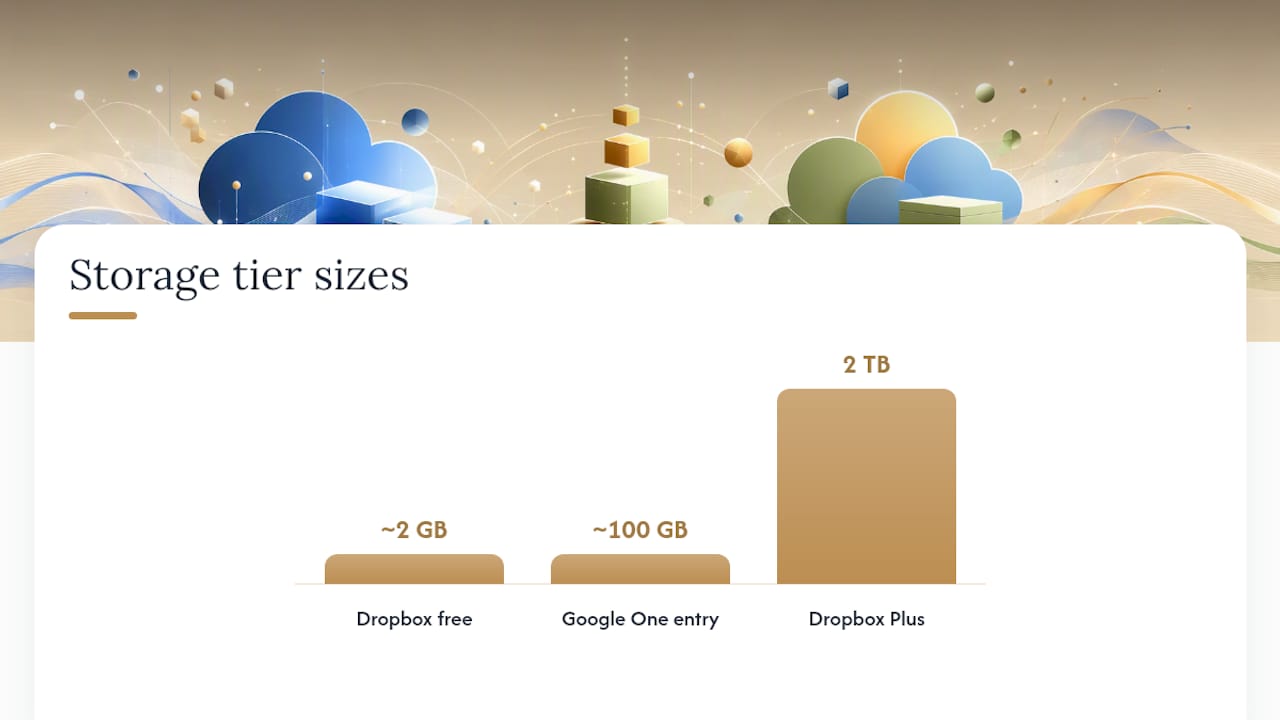
Google Drive starts you off with a relatively generous amount of free storage, and that number is genuinely more useful than it sounds because it’s shared across Gmail attachments, Google Photos, and your Drive files combined rather than siloed off. Dropbox’s free tier is much thinner by comparison, closer to 2 GB, which makes it feel like a trial run more than a real free plan.
Once you move to paid tiers, the shape of the pricing changes. Google’s entry-level Google One plan sits around 100 GB for a few dollars a month, with jumps up to 2 TB plans that also unlock extra Workspace features. Dropbox’s Plus plan gets you into the 2 TB range right out of the gate, which changes the math if you’re a photographer, video editor, or anyone hoarding large source files. On a pure price-per-terabyte basis, Google Drive usually comes out cheaper at the entry level, while Dropbox’s plans lean toward people who need that bigger bucket immediately rather than growing into it.
Team pricing is where the two philosophies really diverge:
- Google Workspace bundles storage with Gmail, Meet, Docs, Sheets, and Slides, so you’re paying for a whole productivity suite, not just a hard drive in the sky.
- Dropbox’s business plans focus more narrowly on storage, sync, and sharing, often with a minimum seat count that doesn’t suit true solo operators as cleanly.
- Neither platform’s team storage is truly unlimited in practice, even when marketing language suggests otherwise, so check the fine print on a specific plan before committing.
- Add-on storage tends to be cheaper per gigabyte at higher tiers on both platforms, which matters if you’re already close to your cap.
Pro Tip: Before you upgrade anything, actually check your current usage in either platform’s storage settings. Most people wildly overestimate how much space they need, and downgrading a plan later is more annoying than sizing it right the first time.
If you’re trying to estimate your real monthly cost, don’t just look at the sticker price. Factor in whether you’re paying for a suite you’ll actually use (Workspace apps, for instance) or paying purely for capacity you need for large files. A freelance video editor and a solo bookkeeper have wildly different “value” calculations even if they’re staring at the same price list.
How Do Sync Speed and Performance Compare?
If you’ve ever watched a progress bar crawl while Google Drive re-uploads an entire 2 GB video file after you changed ten seconds of it, you already understand why sync technology matters more than most comparisons admit. This is where Dropbox has built its reputation, and it’s not hype.
Block-level sync is the mechanism behind that reputation. Instead of treating a file as one indivisible blob, Dropbox breaks it into blocks and only re-syncs the blocks that actually changed. Edit a paragraph in a 50-page InDesign file, and Dropbox uploads a sliver of that file rather than the whole thing. This is the exact reason creative professionals working with large binary files tend to gravitate toward Dropbox, because the time savings compound with every edit.
Dropbox also supports LAN sync, which lets devices on the same local network sync files directly with each other instead of each device pulling separately from the cloud. If you’ve got a studio with three machines editing the same project folder, that’s a real speed advantage, not a nice-to-have.
Google Drive has its own practical limits worth knowing before they surprise you:
- Drive enforces daily upload caps that can throttle you if you’re bulk-uploading a large archive in one sitting.
- Individual file size limits exist on both platforms, but they rarely matter unless you’re moving raw video or massive design archives.
- Drive’s desktop sync client has improved its handling of large files over the years, but it still isn’t built around the block-level model Dropbox uses.
- Simultaneous large uploads across many files can slow Drive’s sync client more noticeably than Dropbox’s.
To measure this in your own setup rather than trusting a spec sheet, try this quick checklist:
- Pick a real file you edit often, ideally one over 500 MB, not a test document.
- Make a small edit and time how long each platform takes to fully sync it.
- Repeat with a handful of small edits back to back to see how each platform handles rapid changes.
- Test with multiple devices active at once, since sync behavior often degrades differently under load.
Pro Tip: Run this test with your actual production files, not a sample file downloaded from the internet. A stock test video behaves nothing like your real client deliverables, and the results won’t tell you anything useful about your own workflow.
Which Platform Handles Real-Time Collaboration Better?
Google Drive wins this one clearly for document work, and it’s not close. Docs, Sheets, and Slides let multiple people edit the same file simultaneously, see each other’s cursors move, and comment inline without exporting or re-uploading anything. Testing consistently shows Google’s real-time editing as the stronger experience for teams centered on collaborative document work, and higher Workspace tiers now layer in AI writing and summarization features directly inside those documents.
Dropbox took a different route. Rather than building its own document editor, it leans on integrations:
- Microsoft 365 files can be opened and edited in place inside Dropbox, so Word and Excel users aren’t forced to export and re-import.
- Dropbox Replay handles video and audio review, letting clients leave timestamped comments directly on a media file, which is a genuine advantage for anyone delivering creative work.
- Dropbox can also sync and preview Google Docs, Sheets, and Slides files, though the actual editing still happens back in Google’s environment.
So which one shortens your review cycle? If your work is spreadsheets, proposals, and shared documents that a team edits together in real time, Google Drive removes friction that Dropbox simply can’t. If your work is client-facing media, PDFs, or Office documents that need a fast, reliable single source of truth for delivery, Dropbox’s integrations plus its file handling tend to move projects along quicker. Agencies and consultants juggling both often end up using each platform for the part it’s actually good at.
How Should You Handle Sharing and Client Permissions?
Sharing is where good intentions go to die if you’re not careful, and the two platforms handle the risk differently. Dropbox generally offers more granular link controls, including passwords and expiration dates on shared links, which matters more than it sounds once you’ve accidentally left a client proposal link live for six months. Google Drive’s sharing model works well internally but produces that familiar “access request” bottleneck when an external collaborator without the right Google account tries to open a file.
Shared drives (Google’s team-level storage) and Dropbox’s team folders solve similar problems but trip people up in similar ways:
- Permission inheritance is a common trap: a folder shared as “editor” often passes that access down to every subfolder, even ones you meant to keep private.
- Removing someone from a shared drive doesn’t always revoke access to files they’ve already downloaded locally.
- Link sharing defaults differ by admin settings, so “anyone with the link” might be your organization’s default even when you didn’t choose it.
For client deliverables specifically, a short secure-sharing checklist saves you from the most common mistakes:
- Set a password on any link containing financial, legal, or unreleased creative work.
- Add an expiration date, especially for one-time deliverables like invoices or drafts.
- Default to view-only access unless the recipient genuinely needs to edit.
- Double-check folder-level permissions before sharing a subfolder, since inherited access is the single most common leak.
Version History and Recovery: What Happens When You Mess Up
Everyone deletes the wrong file eventually. What matters is how easily you can undo it. Dropbox’s Rewind feature lets you roll an entire folder back to a previous point in time, and Dropbox offers longer version history windows on many paid plans compared with Google Drive’s default retention for non-native file types.
Google Drive’s versioning works well for its own native formats. Docs, Sheets, and Slides keep detailed revision histories automatically, letting you jump back to any prior edit. The story gets murkier for non-native files, PDFs, images, and other uploads, where retention windows are shorter and less forgiving than Dropbox’s Rewind.
A few practical guidelines worth following regardless of which platform you use:
- If you’re regularly handling non-native files (PDFs, RAW images, video), Dropbox’s extended recovery windows on paid tiers offer more peace of mind.
- If most of your critical work lives in Google’s native document formats, Drive’s built-in version history is already strong enough on its own.
- Set a real backup cadence rather than assuming cloud sync equals backup. Sync replicates deletions and ransomware just as fast as it replicates good edits.
- Consider a dedicated backup service on top of either platform if you’re handling client contracts, financial records, or anything genuinely irreplaceable.
Neither platform is a substitute for a real backup strategy. Sync software mirrors your mistakes at the same speed it mirrors your successes.
Integrations and Ecosystem Fit: Which One Matches Your Stack
The single deciding factor for many users isn’t a specific feature at all, it’s ecosystem fit: which apps you already live in day to day. Google Drive plugs directly into Gmail, Calendar, Meet, and the rest of Workspace, so if your inbox and your documents are already Google, adding Drive costs you nothing in context switching. Dropbox, by contrast, plays well with Microsoft 365 and a wide range of third-party creative tools, from Adobe Creative Cloud to various project management platforms.
Both platforms support automation connectors like Zapier, along with their own built-in automation options, and this is where solopreneurs get real leverage without hiring anyone to manage file logistics. A simple Zap that copies a finished file from a Drive folder into a client’s Dropbox folder replaces a manual export-and-upload step you’d otherwise repeat dozens of times a month.
A couple of decision prompts to cut through the noise:
- If most of your tools are already Google-first (Gmail, Meet, Google Ads, Google Analytics), Drive removes friction you didn’t know you had.
- If you deliver finished work to many external clients who aren’t in your ecosystem, Dropbox’s sharing and sync strengths matter more than deep app integration.
- If you’re stuck between the two, a structured approach to designing workflows across tools can help you map exactly where each platform should sit in your process before you commit.
Are Dropbox and Google Drive Equally Secure?
Both platforms clear the baseline you’d expect from a major cloud storage provider. Dropbox and Google Drive both encrypt data in transit and at rest and support two-factor authentication, so on paper, security parity is closer than most comparisons suggest.
Where they both fall short is zero-knowledge encryption. Neither platform encrypts your files in a way that prevents the company itself from ever accessing them, at least not by default across all plans. If your work involves legally privileged documents, health records, or anything requiring that level of assurance, you need a dedicated zero-knowledge tool layered on top, not a hope that your cloud provider’s standard encryption covers you.
For business plans, the admin controls actually worth checking before you commit are:
- Audit logs, so you can see who accessed or moved a file and when.
- Data loss prevention (DLP) policies that flag or block sensitive information from being shared externally.
- Remote wipe capability for lost or stolen devices, especially relevant if your team works from personal laptops.
- Granular admin permissions that let you separate who can manage billing from who can manage file access.
If your work regularly touches sensitive client data, it’s worth reviewing a privacy-first approach to your storage and file workflow before you assume either platform’s default settings have you covered.
Which One Should You Actually Choose?
Feature comparisons only matter once you match them to how you actually work. Here’s how that plays out for common situations:
- Solo writer or content creator: Google Drive, because Docs’ real-time editing and commenting beat exporting drafts back and forth.
- Photographer or video editor: Dropbox, since block-level sync and larger entry storage handle big media files far better.
- Consultant delivering client reports: Dropbox, for the password-protected links and expiration controls on final deliverables.
- Small team collaborating on proposals daily: Google Drive, because simultaneous editing removes the version-conflict headaches entirely.
- Freelance designer working with agencies on Adobe files: Dropbox, thanks to its stronger third-party creative integrations.
- Bookkeeper or accountant managing spreadsheets: Google Drive, since Sheets plus Workspace’s lower entry cost fits budget-conscious solo work.
- Podcast or video producer needing client review: Dropbox, because Replay’s timestamped media comments streamline feedback rounds.
- Anyone running a mixed workflow with both drafting and heavy client delivery: the hybrid approach, using Drive for collaborative work-in-progress and Dropbox for final, large-file handoffs.
If you land in that last group, don’t force yourself to pick a single winner. Power users frequently treat Drive as the drafts hub and Dropbox as the delivery engine, and that split plays to each platform’s actual strength instead of asking one tool to do a job it wasn’t built for.
How to Set Up a Hybrid Dropbox and Google Drive Workflow
Running both platforms sounds like double the admin work, but done right, it’s closer to giving each tool exactly one job. Here’s a setup that works without turning into a filing nightmare:
- Create a dedicated draft folder in Google Drive for every active project, and do all collaborative editing there, comments and all.
- Mark a file “final” only once it’s genuinely done, then export it in its finished format (PDF, MP4, whatever the deliverable requires).
- Move the final file into a shared Dropbox folder structured by client or project, so your delivery system never mixes with your drafting mess.
- Share the final file via a passworded, expiring Dropbox link, especially for anything financial, contractual, or client-facing.
- Automate the handoff using Zapier or a built-in connector so finished files move from Drive to Dropbox without you manually dragging anything.
Pro Tip: Set up the automation once, test it with a throwaway file first, and only then trust it with real client work. A misconfigured Zap that silently fails to move a file is worse than doing the transfer manually, because you won’t notice until a client asks where their deliverable is.
A few habits round out the system and keep it from falling apart under real use:
- Use consistent file naming (date, project, version number) across both platforms so nothing gets lost in translation.
- Set a retention policy for your draft folder, deciding upfront how long half-finished work sticks around before archiving or deleting it.
- Back up final deliverables somewhere outside both platforms if you’re handling anything genuinely irreplaceable.
Structured automation like this is exactly the kind of workflow freelancers use to reclaim hours they’d otherwise spend on manual file transfers, and it scales without adding a single hire.
A Solopreneur’s Take on Running Both Platforms
Most comparisons treat this as a battle with one winner, and that framing has never made sense to me. Running a solo business means every tool has to earn its place, and forcing Google Drive to handle final client deliverables, or forcing Dropbox to be your team’s collaborative writing space, wastes the exact advantage each platform offers.
What surprises people is how little the hybrid setup actually costs in time once it’s automated. The friction isn’t running two platforms, it’s manually moving files between them, and that’s a problem automation solves completely. Once a Zap handles the Drive-to-Dropbox handoff, you stop thinking about “which platform” and start thinking about “which folder,” which is a much smaller mental tax.
If you’re building out this kind of system from scratch, the free AI stack guide covers the tools I’d reach for to keep a one-person operation running at a scale that looks like a much bigger team. The real lesson isn’t Dropbox versus Drive. It’s picking the right tool for each specific job and letting automation handle the boring parts in between.
– Jay
Tools That Round Out Your Cloud Storage Setup
Whichever platform you land on, storage decisions rarely stand alone. They connect to research, writing, and automation tools that determine how efficiently your files actually get created and moved in the first place. Yoursolobusiness is built around exactly that kind of connected thinking, matching the right tool to the right task instead of forcing one app to do everyone’s job.

If sync speed and storage math got you thinking about the rest of your tool stack, the AI research tools roundup breaks down which tools actually save time versus which ones just add another login to manage. Pair that with the AI workflow automation guide if you want to build out the kind of Drive-to-Dropbox handoff described above without touching a single line of code. Start with whichever guide matches the gap in your current setup, and build from there.
Sources
- Dropbox vs. Google Drive: Which Is Best? 2026
- Dropbox vs. Google Drive: I Tested Both and Picked a Winner
- Google Drive vs Dropbox (2026 Review): Speed vs. Ecosystem – CloudKitly
- Dropbox vs. Google Drive: What’s the Best File Management Tool? – Make Tech Easier